5 smartphone AI features you're probably using wrong
Ever really stopped to think about how smart your phone actually is? It’s loaded with AI features most of us barely notice, and some of them are way more useful than you'd expect! In this post, we’re breaking down five underrated or often overlooked AI tools your phone already has. And yes… one of them could literally save your life.


In this blog post...
- Autocorrect & text replacement
- Voice assistant
- Camera auto mode with various presets
- Suggestions for apps, messages, journaling, and routes
- Safety features
Below, we’re highlighting five examples of AI on smartphone that many people either overlook or don’t take full advantage of.
1. Autocorrect & text replacement
We’ve all been there: you’re typing a message or email on your phone, and autocorrect suddenly decides to “fix” a word that wasn’t broken. Annoying, right? No wonder so many people just switch it off and hope for the best.But turning off autocorrect isn’t actually a great idea. Without it, your phone won’t catch typos anymore, and you lose a really helpful basic feature!
A better approach is to train autocorrect instead of ditching it. Since it’s powered by machine learning, it improves every time you correct one of its mistakes. Over time, the AI adapts to your personal writing style.
So instead of disabling it, train it by:
- typing the correct word yourself, or
- choosing the right suggestion your phone offers.
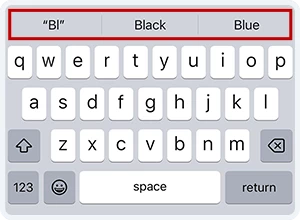
Autocorrect suggestions in iOS
With a little training, autocorrect becomes much more accurate and actually speeds up your typing. In the long run, it makes writing on a small phone screen a lot more comfortable.
Pro tip: Alternatively, you can also train your autocorrect by adding frequently used words directly to your phone’s dictionary. This helps your phone recognize them correctly and prevents unnecessary corrections.
How to train autocorrect on your iPhone
Go to Settings > General > Keyboard > Text Replacement and tap the “+” icon to add your new word.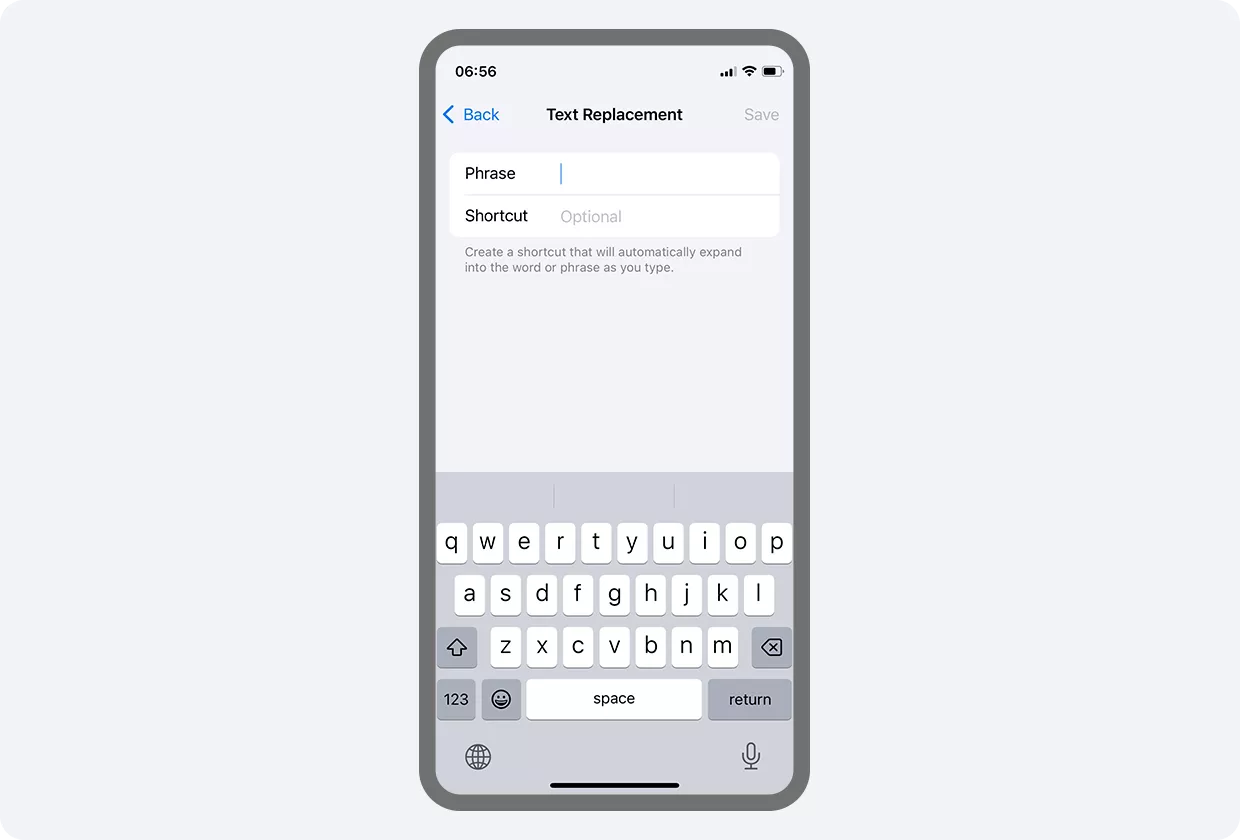
Text replacement on iPhone
How to train autocorrect on your Android phone
Go to Settings > Language & Input > My Dictionary and add your own terms. You can also create shortcuts if you want to insert them even faster.Fun Fact: Did you know Autocorrect actually has a predecessor called T9? It was used on old 90s keypad phones and tried to guess words based on number combinations, often with hilarious results. That’s the system that could turn “Merry Christmas” into “Muddy Christmas.” Thankfully, today’s autocorrect is much smarter and works completely differently!
2. Voice assistant
“Hey Siri,” “Alexa” – do you use the voice assistant on your smartphone? If not yet, it might be worth giving it a shot. These tools can do far more than play your favorite playlist or set a pizza timer. Here are a few everyday examples of what they can do:- Help with navigation: Commands like “Guide me to the nearest gas station” save you from typing and get you moving in the right direction instantly.
- Smart home control: Lights, thermostats, speakers… Many smart devices can be managed completely hands-free through your voice assistant.
- Quick questions in daily life: Instead of googling the forecast for tomorrow, just ask, “What’s the weather going to be like tomorrow?” Your assistant will give you an answer tailored to your location.
Why not try it out? Activate Siri, Google Assistant, or Alexa in your settings, even just for a test run. You might discover some surprisingly helpful features you’ve never used before.
Quick Note: Voice assistants need to “listen” for their wake words, which can raise data-privacy concerns for some users. If you’re cautious about what gets captured or stored, check your phone’s privacy settings and adjust what your assistant is allowed to access.
3. Camera auto mode with various presets
Smartphone cameras from a few years ago can’t even compare to what we have today: the jump in image quality and ease of use is huge. A big part of that progress comes from AI, especially in automatic mode. Still, many people avoid this mode because they think it makes photos look overly processed or artificial.But that’s not really the case. Auto mode isn’t just a filter. Thanks to artificial intelligence in phones, modern cameras recognize scenes, lighting, and environments and adjust colors, contrast, and exposure to match. Your phone is doing far more behind the scenes than you might realize.
Especially in low-light conditions, AI (ideally combined with a good camera lens) can really shine and show what it’s capable of.
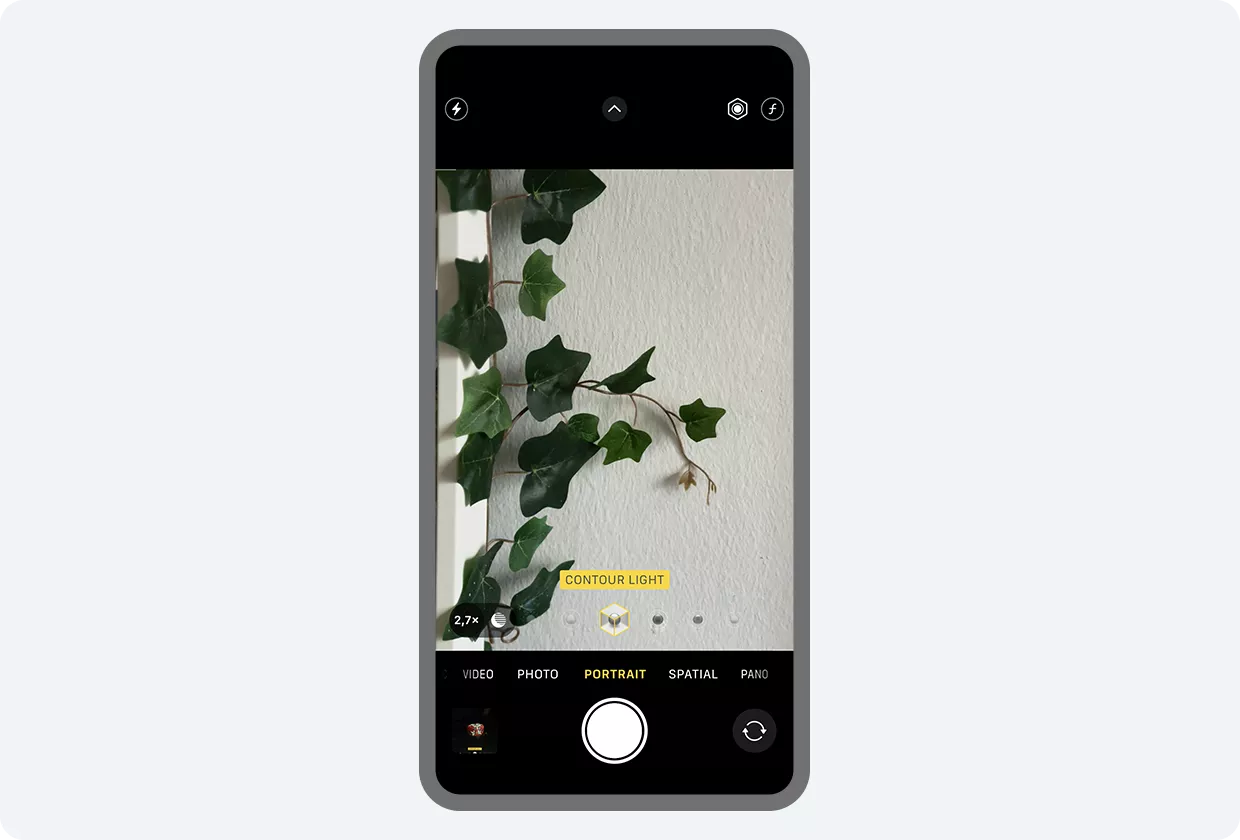
AI mode for the iOS camera app, shown here using the contour light mode
Tip: Try experimenting with the different AI modes on your camera. For example, portrait photos with a bokeh effect, contour light, or stage light.
Remove unwanted objects from photos
Your smartphone has another handy AI trick up its sleeve: cleaning up distracting elements in your pictures. Maybe your family photo turned out great, but there’s an overflowing trash can lurking in the background. Thanks to modern AI tools, you can fix that in seconds.On iOS (iPhone 15 Pro or 16 and newer), the Clean Up feature works like a magic eraser that lets you remove unwanted objects with a simple tap. Samsung devices (One UI 7 and above) offer a similar tool called Object Eraser, which can even wipe away shadows and reflections for an even cleaner result.
You might be surprised by how much AI can elevate your entire photo experience. With just a few quick edits, an ordinary snapshot can transform into something polished and print-worthy!
4. Suggestions for apps, messages, journaling, and routes
Some people get annoyed when their phone pops up suggestions for apps, news, or routes. They swipe them away without a second thought and prefer to search manually. But these suggestions can actually save a lot of time if you give them a chance.Here are a few ways they can help:
- App shortcuts: Your phone picks up on habits, like checking the weather or your favorite news site every morning, and offers those apps right away.
- Journaling suggestions: If you enjoy keeping a digital diary, apps like Journal on iOS can group trips, photos, workouts, and other moments into smart suggestions that make reflecting on your day easier.
- Route planning: Your phone knows the current traffic situation and can guide you along the fastest, cheapest, or most eco-friendly route.
5. Safety features
Some of the most important (and most underrated) AI features on smartphones are the built-in security tools.Protection against dangerous apps and phishing messages
Modern phones come with safety systems that quietly work in the background to keep you secure. Google Play Protect, for example, scans apps for suspicious behavior or malware both before you download them and while you’re using them. With the help of Google AI, harmful content can be flagged, blocked, or removed before it ever reaches you.A common scenario: if a text message or phone call shows signs of a typical scam attempt, your device can display a warning and even suggest blocking the contact.
Despite this, many users dismiss these alerts or switch off the security features altogether. They assume they’re careful enough to spot unsafe apps, phishing messages, or sketchy websites on their own. Unfortunately, that’s not only risky, but it also means losing out on valuable built-in protection.
Pro tip: Keep all pre-installed security features enabled, and don’t uninstall the security apps that come with your device. It may sound counterintuitive, but as AI-generated fraud attempts (like AI-enhanced phishing) become more sophisticated, AI-powered protection becomes essential as a countermeasure. These systems can spot patterns and red flags much faster than the human brain.
Still, no tool is perfect. AI protection helps a lot, but it can’t guarantee 100% safety, so always combine it with a healthy dose of common sense.Here’s another example of how AI can protect your phone in a completely different situation:
Warnings about sensitive content
AI-powered safety features can also notify you when sensitive content, such as nude photos, is sent to your device. These images are automatically blurred, and your phone provides guidance on how to handle the situation safely. It’s a discreet layer of protection, especially useful for younger users or anyone who wants more control over what appears on their screen.- On iOS (version 17 and above), you can activate this feature by opening Settings > Privacy & Security > Sensitive Content Warning.
- On Android, you’ll find the option in the Google Messages app.
Mobile phone AI that can protect life and limb
Modern smartphones don’t just shield us from online risks; they can also help protect us in real-world emergencies. Google Pixel devices and iPhones, along with their paired smartwatches, now include built-in accident detection powered by AI.Using sensor fusion (a combination of motion data, microphone input, and GPS), these devices can detect serious car accidents such as frontal, side, or rear collisions, rollovers, and even severe bike crashes. If a crash is detected, the phone automatically starts a countdown (usually around 30 seconds) before contacting emergency services or your chosen emergency contacts.
Good to know: On many devices, accident detection is already enabled by default. On iPhones, for example, it’s found under Emergency SOS in the settings. Smartwatches can also trigger an alert if they detect the signs of a serious accident.
Take a moment to check whether this feature is active on your phone and watch. And just to be safe, make sure you’ve added an emergency contact who can be notified if help is needed.
Summary: Your phone is smarter than you think
As you’ve seen throughout this article, artificial intelligence in smartphones has become essential, not just a fun extra. When used intentionally, it can help you write more easily, take better photos, stay organized, avoid fraud, and even keep you safe in emergencies.To make sure your phone can give you the full range of AI and security benefits, keep two things in mind:
- Choose a smartphone model that actually supports the AI features you want to use.
- Don’t skip updates. Keeping your operating system current ensures that new features and your security tools stay up to date.
Recommended reading: If you’d like to explore more, check out our AI series on the blog. Among other things, we show you how to write better emails with the help of ChatGPT.
If you found this article helpful, please leave us some feedback below. 😊 And if you still don’t have a mail.com email account, why not sign up for free today?Images: 1&1
14 people found this article helpful.
Related articles