Storage time : A smarter way to keep your email organized
If you’re using mail.com, you can totally clean out your emails whenever you want, but why not make life easier? With the storage time feature, you can set your folders to automatically delete old messages after a certain amount of time.
Once it’s set, your inbox basically tidies itself, no extra effort required.Streamlined storage at the tap of a button!by Manar – Reading time: 5 min.
When you set the storage time, or automatic deletion interval, for your email folders, you can stop worrying about clearing them out yourself. Everything gets cleaned up automatically. It saves time, keeps things organized, and frees up your email storage without you having to lift a finger. Perfect for those of us who forget to tidy up our inbox!
Folders like Trash or Sent are easy to overlook, and they can pile up fast. If those emails include big attachments, like high-res photos from your camera, they can eat up a surprising amount of email storage. Automatic cleanup helps keep that clutter under control so your email stays running smoothly.
Before you set up automatic storage periods for your email folders, it’s worth thinking about one key question: Which emails should be cleared out regularly, and which ones should stay forever?
For anything important, like invoices, contracts, or documents you might need later, it’s smart to create a dedicated folder where these messages are safely stored. When you make a new folder, its default storage time is “unlimited,” and it’s best to keep it that way. Otherwise, you might be left wondering why essential emails suddenly vanished.
Less important messages, for example, promo emails, coupon codes, or short-term offers, can go into their own folder. You can even use filter rules to sort them automatically. These folders are perfect candidates for shorter storage periods, helping you keep clutter under control without losing anything that matters.
Pro Tip: In case an important email does end up getting lost in your inbox, check out our explainer on how to find it using the mail.com search tool!
Once you’ve decided which folders automatically clear out old emails, the next step is setting up the storage time. It only takes a moment, and you can adjust each folder individually. Here’s how to set it up:
Log in to your mail.com account and go to Email.
In the left menu, hover over the folder you want to change.
Click the wrench icon that appears.
Choose how long emails should be kept under storage time, then click OK.
FYI: You can find a visual step-by-step guide on how to set up the storage time in the mail.com Help section. Just type “storage time” into the search bar.
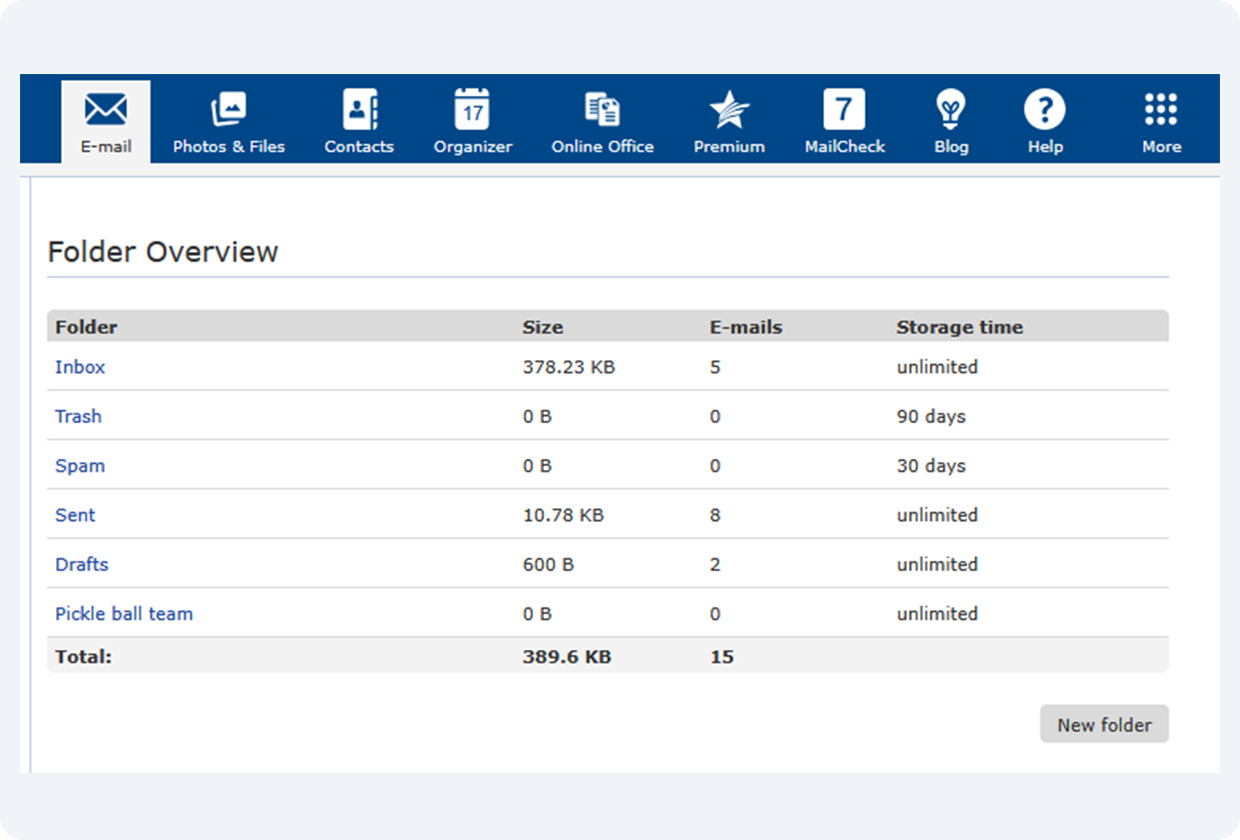
Alternatively, you can also change the storage period in your general settings. Just go to Settings > Folder Overview, where you’ll see each and every folder along with its current storage time (check out the image above for reference).
It’s a good idea to review the storage or deletion period for each folder from time to time. This helps make sure the settings still fit your needs. That way, important emails won’t disappear because a folder is set to delete messages too quickly, and junk mail won’t sit around in your spam folder taking up storage space you could use for the emails that matter.
And yes, your mail.com account comes with a generous 65 GB of free email storage, so technically you’ve got space for just about everything… but that still doesn’t mean you need to hoard old spam forever!
Unfortunately, the storage time for your folders can’t be changed directly in the mail.com app. If you want to adjust how long emails are kept or when they’re automatically deleted, you’ll need to log in to your mail.com account in your web browser. Any updates you make there will then apply to your folders across all devices.
FAQ: Managing Email Storage and Folders on mail.com
Why can’t I delete certain folders?
Default system folders (Inbox, Sent, Drafts, Spam, Trash) are essential for your mailbox and cannot be removed. Only user-created folders can be deleted.
Do emails delete themselves automatically?
Emails only delete themselves if you’ve set a storage time for that folder. Otherwise, they stay in your mailbox until you delete them manually. The exception is the Spam folder, which automatically deletes messages after 30 days by default, but you can adjust this period if you prefer.
How do I recover a deleted folder?
If a deleted folder had emails in it, you may be able to restore it from your Trash folder. If the folder doesn’t show up there, it likely can’t be recovered anymore.
Do emails take up storage?
Yes. Emails, especially those with attachments, count toward your mail.com storage. This includes Trash and Spam folders if they’re not emptied automatically.
Does email take up storage on your phone?
Emails themselves don’t take up space on your phone unless you download attachments. Otherwise, everything stays stored on mail.com’s servers.
What happens if my email storage is full?
If you hit your limit, you won’t receive new emails until you clear space. Deleting large attachments or enabling automatic cleanup helps prevent this.
Setting a storage time is a simple way to keep your mailbox organized without constant effort. Once you’ve chosen which emails to keep and which to clear out automatically, your inbox practically maintains itself. Whether you’re managing tons of messages or just want a cleaner, faster email experience, these settings give you full control. And with mail.com’s generous storage space, you can keep what matters and let the rest take care of itself. Happy organizing!
If you found this article helpful, please leave us some feedback below. 😊 And if you still don’t have a mail.com email account, why not sign up for free today?